1
2
3
4
5
6
7
8
9
10
11
12
13
14
15
16
17
18
19
20
21
22
23
24
25
26
27
28
29
30
31
32
33
34
35
36
37
38
39
40
41
42
43
44
45
46
47
48
49
50
51
52
53
54
55
56
57
58
59
60
61
62
63
64
65
66
67
68
69
70
71
72
73
74
75
76
77
78
79
80
81
82
83
84
85
86
87
88
89
90
91
92
93
94
95
96
97
98
99
100
101
102
103
104
105
106
107
108
109
110
111
112
113
114
115
116
117
118
119
120
121
122
123
124
125
126
127
128
129
130
131
132
133
134
135
136
137
138
139
140
141
142
143
144
145
146
147
148
149
150
151
152
153
154
155
156
157
158
159
160
161
162
163
164
165
166
167
168
169
170
171
172
173
174
175
176
177
178
179
180
181
182
183
184
185
186
187
188
189
190
191
192
193
194
195
196
197
198
199
200
201
202
203
204
205
206
207
208
209
210
211
212
213
214
215
216
217
218
219
220
221
222
223
224
225
226
227
228
229
230
231
232
233
234
235
236
237
238
239
240
241
242
243
244
245
246
247
248
249
250
251
252
253
254
255
256
257
258
259
260
261
262
263
264
265
266
267
268
269
270
271
272
273
274
275
276
277
278
279
280
281
282
283
284
285
286
287
288
289
290
291
292
293
294
295
296
297
298
299
300
301
302
303
304
305
306
307
308
309
310
311
312
313
314
315
316
317
318
319
320
321
322
323
324
325
326
327
328
329
330
331
332
333
334
335
336
337
338
339
340
341
342
343
344
345
346
347
348
349
350
351
352
353
354
355
356
357
358
359
360
361
362
363
364
365
366
367
368
369
370
371
372
373
374
375
376
377
378
379
380
381
382
383
384
385
386
387
388
389
390
391
392
393
394
395
396
397
398
399
400
401
402
403
404
405
406
407
408
409
410
411
412
413
414
415
416
417
418
419
420
421
422
423
424
425
426
427
428
429
430
431
432
433
434
435
436
437
438
439
440
441
442
443
444
445
446
447
448
449
450
451
452
453
454
455
456
457
458
459
460
461
462
463
464
465
466
467
468
469
470
471
472
473
474
475
476
477
478
|
<p align="center">
<img src="https://user-images.githubusercontent.com/69171671/117440218-4ae26800-af23-11eb-87b4-1d9026fc953f.png"/>
</p>
# mpvacious
[](https://aur.archlinux.org/packages/mpv-mpvacious/)
[](https://tatsumoto-ren.github.io/blog/join-our-community.html)

[](https://tatsumoto.neocities.org/blog/donating-to-tatsumoto.html)
mpvacious is your semi-automatic subs2srs for mpv.
It supports multiple workflows and allows you to quickly create Anki cards
while watching your favorite TV show.
**[Video demonstration](https://redirect.invidious.io/watch?v=vU85ramvyo4)**.
## Requirements
<table>
<tr>
<th><a href="https://www.gnu.org/gnu/about-gnu.html">GNU/Linux</a></th>
<th><a href="https://www.gnu.org/proprietary/malware-microsoft.en.html">Windows 10+</a></th>
<th><a href="https://www.gnu.org/proprietary/malware-apple.en.html">macOS</a></th>
<th>Comments</th>
</tr>
<tr>
<td><a href="https://wiki.archlinux.org/index.php/Mpv">mpv</a></td>
<td><a href="https://sourceforge.net/projects/mpv-player-windows/files">mpv</a></td>
<td><a href="https://mpv.io/installation/">mpv</a></td>
<td>v0.32.0 or newer.</td>
</tr>
<tr>
<td><a href="https://wiki.archlinux.org/index.php/Anki">Anki</a></td>
<td colspan="2" align="center"><a href="https://apps.ankiweb.net/">Anki</a></td>
<td></td>
</tr>
<tr>
<td colspan="3" align="center"><a href="https://ankiweb.net/shared/info/2055492159">AnkiConnect</a></td>
<td>Install from AnkiWeb.</td>
</tr>
<tr>
<td><a href="https://www.archlinux.org/packages/core/x86_64/curl/">curl</a></td>
<td colspan="2" align="center"><a href="https://curl.haxx.se/">curl</a></td>
<td>Installed by default on all platforms except Windows 7.</td>
</tr>
<tr>
<td><a href="https://www.archlinux.org/packages/extra/x86_64/xclip/">xclip</a> or <a href="https://archlinux.org/packages/extra/x86_64/wl-clipboard">wl-copy</a></td>
<td></td>
<td>pbcopy</td>
<td>To copy subtitle text to clipboard.</td>
</tr>
</table>
Install all dependencies at once (on [Arch-based](https://www.parabola.nu/)
[distros](https://www.gnu.org/distros/free-distros.en.html)):
```
$ sudo pacman -Syu mpv anki curl xclip --needed
```
## Prerequisites
* A guide on how to set up Anki can be found [on our site](https://tatsumoto.neocities.org/blog/setting-up-anki.html).
* If you're on a [Windows](https://www.fsf.org/windows) or a [Windows-like](https://reactos.org/) machine,
a mpv build by `shinchiro` is recommended.
* **macOS** users are advised to use [homebrew](https://brew.sh/) or manually add `mpv` to `PATH`.
* Note that it is not recommended to use FlatPak or similar containers.
If you still want to, [read this](howto/flatpak.md).
* Make sure that your build of mpv supports encoding of audio and images.
This shell command can be used to test it.
```
$ mpv 'test_video.mkv' --loop-file=no --frames=1 -o='test_image.jpg'
```
If the command fails, find a compatible build on the [mpv website](https://mpv.io/installation/)
or instead install FFmpeg and [enable FFmpeg support](#configuration) in `mpvacious`'s config file.
* Most problems with adding audio or images to Anki cards can be fixed
by installing FFmpeg and enabling it settings.
## Installation
There are multiple ways you can install `mpvacious`.
I recommend installing with `git` so that you can easily update on demand.
`mpvacious` is a user-script for mpv,
so it has to be installed in the directory `mpv` reads its user-scripts from.
| OS | Location |
|-----------|--------------------------------------------------|
| GNU/Linux | `~/.config/mpv/scripts/` |
| Windows | `C:/Users/Username/AppData/Roaming/mpv/scripts/` |
Windows is not recommended,
but we acknowledge that some people haven't switched to GNU/Linux yet.
### Using git
Clone the repo to the `scripts` directory.
```
mkdir -p ~/.config/mpv/scripts/
git clone 'https://github.com/Ajatt-Tools/mpvacious.git' ~/.config/mpv/scripts/subs2srs
```
To update, run the following command.
```
cd ~/.config/mpv/scripts/subs2srs && git pull
```
### From the AUR
`mpvacious` can be installed with the [mpv-mpvacious](https://aur.archlinux.org/packages/mpv-mpvacious/) package.
### Manually
This way is not recommended because it's easy to make a mistake during the process
and end up with a broken install.
Download
[the repository](https://github.com/Ajatt-Tools/mpvacious/archive/refs/heads/master.zip)
or
[the latest release](https://github.com/Ajatt-Tools/mpvacious/releases)
and extract the folder containing
[subs2srs.lua](https://raw.githubusercontent.com/Ajatt-Tools/mpvacious/master/subs2srs.lua)
to your [mpv scripts](https://github.com/mpv-player/mpv/wiki/User-Scripts) directory.
<details>
<summary>Expected directory tree</summary>
```
~/.config/mpv/scripts
|-- other script 1
|-- other script 2
|-- subs2srs
| |-- main.lua
| |-- subs2srs.lua
| `-- other files
`-- other script 3
```
</details>
<details>
<summary>A note for mpv v0.32 and older</summary>
Older versions of `mpv` don't know how to handle user-scripts in subdirectories.
You need to tell mpv where to look for `mpvacious`.
Open or create `~/.config/mpv/scripts/modules.lua` and add these lines:
```
local mpv_scripts_dir_path = os.getenv("HOME") .. "/.config/mpv/scripts/"
package.path = package.path .. ';' .. os.getenv("HOME") .. '/.config/mpv/scripts/subs2srs/?.lua'
function load(relative_path) dofile(mpv_scripts_dir_path .. relative_path) end
load("subs2srs/subs2srs.lua")
```
</details>
**Note:** in [Celluloid](https://www.archlinux.org/packages/community/x86_64/celluloid/)
user scripts are installed in `/.config/celluloid/scripts/`.
When following the instructions above, replace `.config/mpv` with `.config/celluloid`
and optionally `subs2srs` with the name of the folder mpvacious is cloned into.
## Configuration
The config file should be created by the user, if needed.
| OS | Config location |
|--------------------|-------------------------------------------------------------------|
| GNU/Linux | `~/.config/mpv/script-opts/subs2srs.conf` |
| Windows | `C:/Users/Username/AppData/Roaming/mpv/script-opts/subs2srs.conf` |
| Windows (portable) | `mpv.exeフォルダ/portable_config/script-opts/subs2srs.conf` |
If a parameter is not specified
in the config file, the default value will be used.
mpv doesn't tolerate spaces before and after `=`.
<p align="center">
<a href="https://github.com/Ajatt-Tools/mpvacious/blob/master/.github/RELEASE/subs2srs.conf">Example configuration file</a>
</p>
If the first field is empty, it will be set contain the string `[empty]`.
Otherwise, Anki won't allow mpvacious to add new notes.
This won't happen if the sentence field is first in the note type settings.
**Tip**: Try [our official note type](https://ankiweb.net/shared/info/1557722832)
if you don't want to configure note fields yourself.
Alternatively, we have a collection of user-created note types, which you can browse
[here](https://github.com/Ajatt-Tools/AnkiNoteTypes).
If you are having problems playing media files on older mobile devices,
set `audio_format` to `mp3` and/or `snapshot_format` to `jpg`.
Otherwise, I recommend sticking with `opus` for audio,
and `avif` or `webp` for images,
as they greatly reduce the size of the generated files.
If you still use AnkiMobile (the [proprietary](https://www.gnu.org/proprietary/) Anki app),
set `opus_container` to `m4a` or `webm`. I'll allow iOS to play Opus files, while still maintaining
compatibility with non-Apple devices. For really old iOS devices, set `opus_container` to
[`caf`](https://en.wikipedia.org/wiki/Core_Audio_Format). CAF plays only on Anki Desktop,
AnkiWeb in Safari and AnkiMobile, and is really not recommended. (Please note that
[Lockdown Mode](https://support.apple.com/en-us/105120) completely disables Opus and AVIF support,
though you may try to add an exception for AnkiMobile.)
If no matter what mpvacious fails to create audio clips and/or snapshots,
change `use_ffmpeg` to `yes`.
By using ffmpeg instead of the encoder built in mpv you can work around most encoder issues.
You need to have ffmpeg installed for this to work.
### Key bindings
The user may change some global key bindings, though this step is not necessary.
See [Usage](#usage) for the explanation of what they do.
| OS | Config location |
|-----------|----------------------------------------------------|
| GNU/Linux | `~/.config/mpv/input.conf` |
| Windows | `C:/Users/Username/AppData/Roaming/mpv/input.conf` |
Default bindings:
```
a script-binding mpvacious-menu-open
Ctrl+g script-binding mpvacious-animated-snapshot-toggle
Ctrl+n script-binding mpvacious-export-note
Ctrl+m script-binding mpvacious-update-last-note
Ctrl+M script-binding mpvacious-overwrite-last-note
g script-binding mpvacious-quick-card-menu-open
Alt+g script-binding mpvacious-quick-card-sel-menu-open
Ctrl+c script-binding mpvacious-copy-primary-sub-to-clipboard
Ctrl+C script-binding mpvacious-copy-secondary-sub-to-clipboard
Ctrl+t script-binding mpvacious-autocopy-toggle
H script-binding mpvacious-sub-seek-back
L script-binding mpvacious-sub-seek-forward
Alt+h script-binding mpvacious-sub-seek-back-pause
Alt+l script-binding mpvacious-sub-seek-forward-pause
Ctrl+h script-binding mpvacious-sub-rewind
Ctrl+H script-binding mpvacious-sub-replay
Ctrl+L script-binding mpvacious-sub-play-up-to-next
Ctrl+v script-binding mpvacious-secondary-sid-toggle
Ctrl+k script-binding mpvacious-secondary-sid-prev
Ctrl+j script-binding mpvacious-secondary-sid-next
```
**Note:** A capital letter means that you need to press Shift in order to activate the corresponding binding.
For example, <kbd>Ctrl+M</kbd> actually means <kbd>Ctrl+Shift+m</kbd>.
mpv accepts both variants in `input.conf`.
## Usage
* [Create a card](howto/create_card.md)
* [Quick card creation](howto/create_quick_card.md)
* [Open the "Add" dialog](howto/add_dialog.md)
* [Usage with Rikaitan](howto/yomichan.md)
* [Usage with GoldenDict](howto/goldendict.md)
### Global bindings
**Menu:**
* <kbd>a</kbd> - Open `advanced menu`.
**Enable\Disable animation:**
* <kbd>Ctrl+g</kbd> - If animation is enabled, animated snapshots will be generated instead of static images.
Animated snapshot are like GIFs (just in a different format)
and will capture the video from the start to the end times selected.
**Make a card:**
* <kbd>Ctrl+n</kbd> - Export a card with the currently visible subtitle line on the front.
Use this when your subs are well-timed,
and the target sentence doesn't span multiple subs.
**Quick card creation:**
* <kbd>g</kbd> - Quick card creation menu.
* <kbd>Alt+g</kbd> - Quick card creation, card selection menu.
**Update the last card:**
* <kbd>Ctrl+m</kbd> - Append to the media fields of the newly added Anki card.
* <kbd>Ctrl+Shift+m</kbd> - Overwrite media fields of the newly added Anki card.
**Clipboard:**
* <kbd>Ctrl+c</kbd> - Copy current subtitle string to the system clipboard.
* <kbd>Ctrl+t</kbd> - Toggle automatic copying of subtitles to the clipboard.
**Seeking:**
* <kbd>Shift+h</kbd> and <kbd>Shift+l</kbd> - Seek to the previous or the next subtitle.
* <kbd>Alt+h</kbd> and <kbd>Alt+l</kbd> - Seek to the previous, or the next subtitle, and pause.
* <kbd>Ctrl+h</kbd> - Seek to the start of the currently visible subtitle. Use it if you missed something.
* <kbd>Ctrl+Shift+h</kbd> - Replay current subtitle line, and pause.
* <kbd>Ctrl+Shift+l</kbd> - Play until the end of the next subtitle, and pause. Useful for beginners who need
to look up words in each and every dialogue line.
**Secondary subtitles:**
* <kbd>Ctrl+v</kbd> - Toggle visibility.
* <kbd>Ctrl+k</kbd> - Switch to the previous subtitle if it's not already selected.
* <kbd>Ctrl+j</kbd> - Switch to the next subtitle if it's not already selected.
### Menu options
Advanced menu has the following options:
* <kbd>f</kbd> - Increment number of cards to update. Only affects note updating, including quick card creation. The number of cards to update is reset to 1 upon updating a note.
* <kbd>shift+f</kbd> - Decrement number of cards to update.
* <kbd>c</kbd> - Interactive subtitle selection.
The range of the currently displayed subtitle line is selected. The selection then grows both ways based on the following displayed lines.
It does nothing if there are no subs on screen.
* <kbd>shift+s</kbd> - Set the start time to the current sub. The selection then grows forward based on the following displayed lines.
The default selection spans across the range of the currently displayed subtitle line.
* <kbd>shift+e</kbd> - Set the end time to the current sub. The selection then grows backward based on the following displayed lines.
The default selection spans across the range of the currently displayed subtitle line.
Then seek with <kbd>Shift+h</kbd> and <kbd>Shift+l</kbd> to the previous/next line that you want to add.
Press <kbd>n</kbd> to make the card.
* <kbd>r</kbd> - Forget all previously saved timings and associated dialogs.
* <kbd>z</kbd> and <kbd>Shift+z</kbd> - Adjust subtitle delay.
If above fails, you have to manually set timings.
* <kbd>s</kbd> - Set the start time. The selection then grows forward based on the following displayed lines.
The default selection spans across the selected start point and the end of the subtitle line.
* <kbd>e</kbd> - Set the end time. The selection then grows backward based on the following displayed lines.
The default selection spans across the selected end point and the start of the subtitle line.
Then, as earlier, press <kbd>n</kbd> to make the card.
**Tip**: change playback speed by pressing <kbd>[</kbd> and <kbd>]</kbd>
to precisely mark start and end of the phrase.
### My subtitles are not in sync
If subs are badly timed, first, you could try to re-time them.
Read [Retiming subtitles](https://tatsumoto.neocities.org/blog/retiming-subtitles).
Or shift timings using key bindings provided by mpv (usually <kbd>z</kbd> and <kbd>Shift+z</kbd>).
### Example sentence card
With the addon you can make cards like this in just a few seconds.
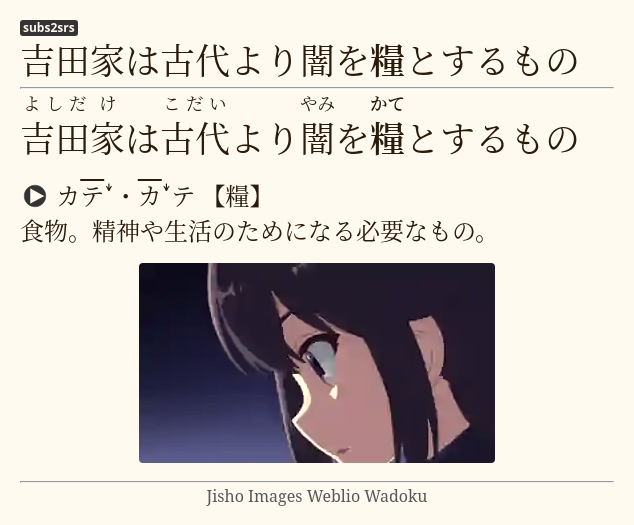
### Audio cards
It is possible to make a card with just audio, and a picture
when subtitles for the show you are watching aren't available, for example.
mpv by default allows you to do a `1` second exact seek by pressing <kbd>Shift+LEFT</kbd> and <kbd>Shift+RIGHT</kbd>.
Open the mpvacious menu by pressing <kbd>a</kbd>, seek to the position you need, and set the timings.
Then press <kbd>g</kbd> to invoke the `Add Cards` dialog.
Here's a [video demonstration](https://redirect.invidious.io/watch?v=BXhyckdHPGE).
If the show is hard-subbed, you can use
[transformers-ocr](https://tatsumoto.neocities.org/blog/mining-from-manga.html)
to recognize and add text to the card.
### Secondary subtitles
If you want to add a translation to your cards, and you have the subtitles in that language,
you can add them as secondary subtitles if you run `mpv` with `--secondary-sid=<sid>` parameter,
`sid` being the track identifier for the subtitle.
You also need to specify `secondary_field` in the [config file](#Configuration)
if it is different from the default.
If you want to load secondary subtitles **automatically**, don't modify the run parameters
and instead set the desired languages in the config file (`secondary_sub_lang` option).
Secondary subtitles will be visible when hovering over the top part of the `mpv` window.
https://user-images.githubusercontent.com/69171671/188492261-909ba3e8-b82c-493f-88cf-0ec953dfcfe1.mp4
By pressing <kbd>Ctrl</kbd>+<kbd>v</kbd> you can control secondary sid visibility without using the mouse.
### Other tools
If you don't like the default Rikaitan Search tool, try:
* Clipboard Inserter browser add-on
([chrome](https://chrome.google.com/webstore/detail/clipboard-inserter/deahejllghicakhplliloeheabddjajm))
([firefox](https://addons.mozilla.org/ja/firefox/addon/clipboard-inserter/))
* A html page ([1](https://pastebin.com/zDY6s3NK)) ([2](https://pastebin.com/hZ4sawL4))
to paste the contents of your clipboard to
You can use any html page as long as it has \<body\>\</body\> in it.
### Additional mpv key bindings
I recommend adding these lines to your [input.conf](#key-bindings) for smoother experience.
```
# vim-like seeking
l seek 5
h seek -5
j seek -60
k seek 60
# Cycle between subtitle files
K cycle sub
J cycle sub down
# Add/subtract 50 ms delay from subs
Z add sub-delay +0.05
z add sub-delay -0.05
# Adjust timing to previous/next subtitle
X sub-step 1
x sub-step -1
```
## Profiles
Mpvacious supports config profiles.
To make use of them, create a new config file called `subs2srs_profiles.conf`
in the same folder as your [subs2srs.conf](#Configuration).
Inside the file, define available profile names (without `.conf`) and the name of the active profile:
```
profiles=subs2srs,english,german
active=subs2srs
```
In the example above, I have three profiles.
The first one is the default,
the second one is for learning English,
the third one is for learning German.
Then in the same folder create config files for each of the defined profiles.
For example, below is the contents of my `english.conf` file:
```
deck_name=English sentence mining
model_name=General
sentence_field=Question
audio_field=Audio
image_field=Extra
```
You don't have to redefine all settings in the new profile.
Specify only the ones you want to be different from the default.
To cycle profiles, open the advanced menu by pressing <kbd>a</kbd> and then press <kbd>p</kbd>.
At any time you can see what profile is active in the menu's status bar.
## Hacking
If you want to modify this script
or make an entirely new one from scratch,
these links may help.
* https://mpv.io/manual/master/#lua-scripting
* https://github.com/mpv-player/mpv/blob/master/player/lua/defaults.lua
* https://github.com/SenneH/mpv2anki
* https://github.com/kelciour/mpv-scripts/blob/master/subs2srs.lua
* https://pastebin.com/M2gBksHT
* https://pastebin.com/NBudhMUk
* https://pastebin.com/W5YV1A9q
* https://github.com/ayuryshev/subs2srs
* https://github.com/erjiang/subs2srs
|
