
diff options
| author | navewindre <boneyaard@gmail.com> | 2025-04-05 03:00:29 +0200 |
|---|---|---|
| committer | navewindre <boneyaard@gmail.com> | 2025-04-05 03:00:29 +0200 |
| commit | d6c4365b8de32b621ac46074a9b69908b95686c0 (patch) | |
| tree | 495cb5b1aa7e68ab6ec07fa5fb09904a8c7e47e7 /config/mpv/scripts/subs2srsa/README.md | |
| parent | b24463f3d045783b8f4e72926054d53b908e150f (diff) | |
a
Diffstat (limited to 'config/mpv/scripts/subs2srsa/README.md')
| -rw-r--r-- | config/mpv/scripts/subs2srsa/README.md | 478 |
1 files changed, 0 insertions, 478 deletions
diff --git a/config/mpv/scripts/subs2srsa/README.md b/config/mpv/scripts/subs2srsa/README.md deleted file mode 100644 index deefe3c..0000000 --- a/config/mpv/scripts/subs2srsa/README.md +++ /dev/null @@ -1,478 +0,0 @@ -<p align="center"> -<img src="https://user-images.githubusercontent.com/69171671/117440218-4ae26800-af23-11eb-87b4-1d9026fc953f.png"/> -</p> - -# mpvacious - -[](https://aur.archlinux.org/packages/mpv-mpvacious/) -[](https://tatsumoto-ren.github.io/blog/join-our-community.html) - -[](https://tatsumoto.neocities.org/blog/donating-to-tatsumoto.html) - -mpvacious is your semi-automatic subs2srs for mpv. -It supports multiple workflows and allows you to quickly create Anki cards -while watching your favorite TV show. -**[Video demonstration](https://redirect.invidious.io/watch?v=vU85ramvyo4)**. - -## Requirements - -<table> -<tr> - <th><a href="https://www.gnu.org/gnu/about-gnu.html">GNU/Linux</a></th> - <th><a href="https://www.gnu.org/proprietary/malware-microsoft.en.html">Windows 10+</a></th> - <th><a href="https://www.gnu.org/proprietary/malware-apple.en.html">macOS</a></th> - <th>Comments</th> -</tr> -<tr> - <td><a href="https://wiki.archlinux.org/index.php/Mpv">mpv</a></td> - <td><a href="https://sourceforge.net/projects/mpv-player-windows/files">mpv</a></td> - <td><a href="https://mpv.io/installation/">mpv</a></td> - <td>v0.32.0 or newer.</td> -</tr> -<tr> - <td><a href="https://wiki.archlinux.org/index.php/Anki">Anki</a></td> - <td colspan="2" align="center"><a href="https://apps.ankiweb.net/">Anki</a></td> - <td></td> -</tr> -<tr> - <td colspan="3" align="center"><a href="https://ankiweb.net/shared/info/2055492159">AnkiConnect</a></td> - <td>Install from AnkiWeb.</td> -</tr> -<tr> - <td><a href="https://www.archlinux.org/packages/core/x86_64/curl/">curl</a></td> - <td colspan="2" align="center"><a href="https://curl.haxx.se/">curl</a></td> - <td>Installed by default on all platforms except Windows 7.</td> -</tr> -<tr> - <td><a href="https://www.archlinux.org/packages/extra/x86_64/xclip/">xclip</a> or <a href="https://archlinux.org/packages/extra/x86_64/wl-clipboard">wl-copy</a></td> - <td></td> - <td>pbcopy</td> - <td>To copy subtitle text to clipboard.</td> -</tr> -</table> - -Install all dependencies at once (on [Arch-based](https://www.parabola.nu/) -[distros](https://www.gnu.org/distros/free-distros.en.html)): - -``` -$ sudo pacman -Syu mpv anki curl xclip --needed -``` - -## Prerequisites - -* A guide on how to set up Anki can be found [on our site](https://tatsumoto.neocities.org/blog/setting-up-anki.html). -* If you're on a [Windows](https://www.fsf.org/windows) or a [Windows-like](https://reactos.org/) machine, - a mpv build by `shinchiro` is recommended. -* **macOS** users are advised to use [homebrew](https://brew.sh/) or manually add `mpv` to `PATH`. -* Note that it is not recommended to use FlatPak or similar containers. - If you still want to, [read this](howto/flatpak.md). -* Make sure that your build of mpv supports encoding of audio and images. - This shell command can be used to test it. - - ``` - $ mpv 'test_video.mkv' --loop-file=no --frames=1 -o='test_image.jpg' - ``` - - If the command fails, find a compatible build on the [mpv website](https://mpv.io/installation/) - or instead install FFmpeg and [enable FFmpeg support](#configuration) in `mpvacious`'s config file. -* Most problems with adding audio or images to Anki cards can be fixed - by installing FFmpeg and enabling it settings. - -## Installation - -There are multiple ways you can install `mpvacious`. -I recommend installing with `git` so that you can easily update on demand. - -`mpvacious` is a user-script for mpv, -so it has to be installed in the directory `mpv` reads its user-scripts from. - -| OS | Location | -|-----------|--------------------------------------------------| -| GNU/Linux | `~/.config/mpv/scripts/` | -| Windows | `C:/Users/Username/AppData/Roaming/mpv/scripts/` | - -Windows is not recommended, -but we acknowledge that some people haven't switched to GNU/Linux yet. - -### Using git - -Clone the repo to the `scripts` directory. - -``` -mkdir -p ~/.config/mpv/scripts/ -git clone 'https://github.com/Ajatt-Tools/mpvacious.git' ~/.config/mpv/scripts/subs2srs -``` - -To update, run the following command. - -``` -cd ~/.config/mpv/scripts/subs2srs && git pull -``` - -### From the AUR - -`mpvacious` can be installed with the [mpv-mpvacious](https://aur.archlinux.org/packages/mpv-mpvacious/) package. - -### Manually - -This way is not recommended because it's easy to make a mistake during the process -and end up with a broken install. - -Download -[the repository](https://github.com/Ajatt-Tools/mpvacious/archive/refs/heads/master.zip) -or -[the latest release](https://github.com/Ajatt-Tools/mpvacious/releases) -and extract the folder containing -[subs2srs.lua](https://raw.githubusercontent.com/Ajatt-Tools/mpvacious/master/subs2srs.lua) -to your [mpv scripts](https://github.com/mpv-player/mpv/wiki/User-Scripts) directory. - -<details> - -<summary>Expected directory tree</summary> - -``` -~/.config/mpv/scripts -|-- other script 1 -|-- other script 2 -|-- subs2srs -| |-- main.lua -| |-- subs2srs.lua -| `-- other files -`-- other script 3 -``` - -</details> - -<details> - -<summary>A note for mpv v0.32 and older</summary> - -Older versions of `mpv` don't know how to handle user-scripts in subdirectories. -You need to tell mpv where to look for `mpvacious`. - -Open or create `~/.config/mpv/scripts/modules.lua` and add these lines: -``` -local mpv_scripts_dir_path = os.getenv("HOME") .. "/.config/mpv/scripts/" -package.path = package.path .. ';' .. os.getenv("HOME") .. '/.config/mpv/scripts/subs2srs/?.lua' -function load(relative_path) dofile(mpv_scripts_dir_path .. relative_path) end -load("subs2srs/subs2srs.lua") -``` - -</details> - -**Note:** in [Celluloid](https://www.archlinux.org/packages/community/x86_64/celluloid/) -user scripts are installed in `/.config/celluloid/scripts/`. -When following the instructions above, replace `.config/mpv` with `.config/celluloid` -and optionally `subs2srs` with the name of the folder mpvacious is cloned into. - -## Configuration - -The config file should be created by the user, if needed. - -| OS | Config location | -|--------------------|-------------------------------------------------------------------| -| GNU/Linux | `~/.config/mpv/script-opts/subs2srs.conf` | -| Windows | `C:/Users/Username/AppData/Roaming/mpv/script-opts/subs2srs.conf` | -| Windows (portable) | `mpv.exeフォルダ/portable_config/script-opts/subs2srs.conf` | - -If a parameter is not specified -in the config file, the default value will be used. -mpv doesn't tolerate spaces before and after `=`. - -<p align="center"> - <a href="https://github.com/Ajatt-Tools/mpvacious/blob/master/.github/RELEASE/subs2srs.conf">Example configuration file</a> -</p> - -If the first field is empty, it will be set contain the string `[empty]`. -Otherwise, Anki won't allow mpvacious to add new notes. -This won't happen if the sentence field is first in the note type settings. - -**Tip**: Try [our official note type](https://ankiweb.net/shared/info/1557722832) -if you don't want to configure note fields yourself. -Alternatively, we have a collection of user-created note types, which you can browse -[here](https://github.com/Ajatt-Tools/AnkiNoteTypes). - -If you are having problems playing media files on older mobile devices, -set `audio_format` to `mp3` and/or `snapshot_format` to `jpg`. -Otherwise, I recommend sticking with `opus` for audio, -and `avif` or `webp` for images, -as they greatly reduce the size of the generated files. - -If you still use AnkiMobile (the [proprietary](https://www.gnu.org/proprietary/) Anki app), -set `opus_container` to `m4a` or `webm`. I'll allow iOS to play Opus files, while still maintaining -compatibility with non-Apple devices. For really old iOS devices, set `opus_container` to -[`caf`](https://en.wikipedia.org/wiki/Core_Audio_Format). CAF plays only on Anki Desktop, -AnkiWeb in Safari and AnkiMobile, and is really not recommended. (Please note that -[Lockdown Mode](https://support.apple.com/en-us/105120) completely disables Opus and AVIF support, -though you may try to add an exception for AnkiMobile.) - -If no matter what mpvacious fails to create audio clips and/or snapshots, -change `use_ffmpeg` to `yes`. -By using ffmpeg instead of the encoder built in mpv you can work around most encoder issues. -You need to have ffmpeg installed for this to work. - -### Key bindings - -The user may change some global key bindings, though this step is not necessary. -See [Usage](#usage) for the explanation of what they do. - -| OS | Config location | -|-----------|----------------------------------------------------| -| GNU/Linux | `~/.config/mpv/input.conf` | -| Windows | `C:/Users/Username/AppData/Roaming/mpv/input.conf` | - -Default bindings: - -``` -a script-binding mpvacious-menu-open - -Ctrl+g script-binding mpvacious-animated-snapshot-toggle - -Ctrl+n script-binding mpvacious-export-note - -Ctrl+m script-binding mpvacious-update-last-note -Ctrl+M script-binding mpvacious-overwrite-last-note - -g script-binding mpvacious-quick-card-menu-open -Alt+g script-binding mpvacious-quick-card-sel-menu-open - -Ctrl+c script-binding mpvacious-copy-primary-sub-to-clipboard -Ctrl+C script-binding mpvacious-copy-secondary-sub-to-clipboard -Ctrl+t script-binding mpvacious-autocopy-toggle - -H script-binding mpvacious-sub-seek-back -L script-binding mpvacious-sub-seek-forward - -Alt+h script-binding mpvacious-sub-seek-back-pause -Alt+l script-binding mpvacious-sub-seek-forward-pause - -Ctrl+h script-binding mpvacious-sub-rewind -Ctrl+H script-binding mpvacious-sub-replay -Ctrl+L script-binding mpvacious-sub-play-up-to-next - -Ctrl+v script-binding mpvacious-secondary-sid-toggle -Ctrl+k script-binding mpvacious-secondary-sid-prev -Ctrl+j script-binding mpvacious-secondary-sid-next -``` - -**Note:** A capital letter means that you need to press Shift in order to activate the corresponding binding. -For example, <kbd>Ctrl+M</kbd> actually means <kbd>Ctrl+Shift+m</kbd>. -mpv accepts both variants in `input.conf`. - -## Usage - -* [Create a card](howto/create_card.md) -* [Quick card creation](howto/create_quick_card.md) -* [Open the "Add" dialog](howto/add_dialog.md) -* [Usage with Rikaitan](howto/yomichan.md) -* [Usage with GoldenDict](howto/goldendict.md) - -### Global bindings - -**Menu:** - -* <kbd>a</kbd> - Open `advanced menu`. - -**Enable\Disable animation:** - -* <kbd>Ctrl+g</kbd> - If animation is enabled, animated snapshots will be generated instead of static images. - Animated snapshot are like GIFs (just in a different format) - and will capture the video from the start to the end times selected. - -**Make a card:** - -* <kbd>Ctrl+n</kbd> - Export a card with the currently visible subtitle line on the front. -Use this when your subs are well-timed, -and the target sentence doesn't span multiple subs. - -**Quick card creation:** - -* <kbd>g</kbd> - Quick card creation menu. -* <kbd>Alt+g</kbd> - Quick card creation, card selection menu. - -**Update the last card:** - -* <kbd>Ctrl+m</kbd> - Append to the media fields of the newly added Anki card. -* <kbd>Ctrl+Shift+m</kbd> - Overwrite media fields of the newly added Anki card. - -**Clipboard:** - -* <kbd>Ctrl+c</kbd> - Copy current subtitle string to the system clipboard. -* <kbd>Ctrl+t</kbd> - Toggle automatic copying of subtitles to the clipboard. - -**Seeking:** - -* <kbd>Shift+h</kbd> and <kbd>Shift+l</kbd> - Seek to the previous or the next subtitle. -* <kbd>Alt+h</kbd> and <kbd>Alt+l</kbd> - Seek to the previous, or the next subtitle, and pause. -* <kbd>Ctrl+h</kbd> - Seek to the start of the currently visible subtitle. Use it if you missed something. -* <kbd>Ctrl+Shift+h</kbd> - Replay current subtitle line, and pause. -* <kbd>Ctrl+Shift+l</kbd> - Play until the end of the next subtitle, and pause. Useful for beginners who need - to look up words in each and every dialogue line. - -**Secondary subtitles:** - -* <kbd>Ctrl+v</kbd> - Toggle visibility. -* <kbd>Ctrl+k</kbd> - Switch to the previous subtitle if it's not already selected. -* <kbd>Ctrl+j</kbd> - Switch to the next subtitle if it's not already selected. - -### Menu options - -Advanced menu has the following options: - -* <kbd>f</kbd> - Increment number of cards to update. Only affects note updating, including quick card creation. The number of cards to update is reset to 1 upon updating a note. -* <kbd>shift+f</kbd> - Decrement number of cards to update. - -* <kbd>c</kbd> - Interactive subtitle selection. - The range of the currently displayed subtitle line is selected. The selection then grows both ways based on the following displayed lines. - It does nothing if there are no subs on screen. - -* <kbd>shift+s</kbd> - Set the start time to the current sub. The selection then grows forward based on the following displayed lines. - The default selection spans across the range of the currently displayed subtitle line. -* <kbd>shift+e</kbd> - Set the end time to the current sub. The selection then grows backward based on the following displayed lines. - The default selection spans across the range of the currently displayed subtitle line. - -Then seek with <kbd>Shift+h</kbd> and <kbd>Shift+l</kbd> to the previous/next line that you want to add. -Press <kbd>n</kbd> to make the card. - -* <kbd>r</kbd> - Forget all previously saved timings and associated dialogs. - -* <kbd>z</kbd> and <kbd>Shift+z</kbd> - Adjust subtitle delay. - -If above fails, you have to manually set timings. -* <kbd>s</kbd> - Set the start time. The selection then grows forward based on the following displayed lines. -The default selection spans across the selected start point and the end of the subtitle line. -* <kbd>e</kbd> - Set the end time. The selection then grows backward based on the following displayed lines. -The default selection spans across the selected end point and the start of the subtitle line. - -Then, as earlier, press <kbd>n</kbd> to make the card. - -**Tip**: change playback speed by pressing <kbd>[</kbd> and <kbd>]</kbd> -to precisely mark start and end of the phrase. - -### My subtitles are not in sync - -If subs are badly timed, first, you could try to re-time them. -Read [Retiming subtitles](https://tatsumoto.neocities.org/blog/retiming-subtitles). -Or shift timings using key bindings provided by mpv (usually <kbd>z</kbd> and <kbd>Shift+z</kbd>). - -### Example sentence card - -With the addon you can make cards like this in just a few seconds. - -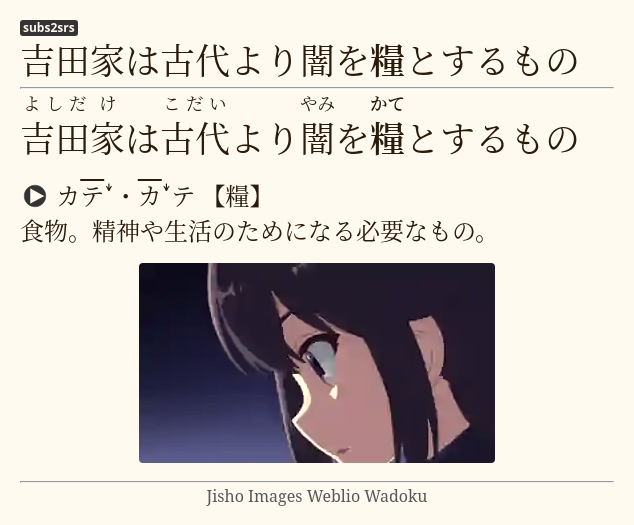 - -### Audio cards - -It is possible to make a card with just audio, and a picture -when subtitles for the show you are watching aren't available, for example. -mpv by default allows you to do a `1` second exact seek by pressing <kbd>Shift+LEFT</kbd> and <kbd>Shift+RIGHT</kbd>. -Open the mpvacious menu by pressing <kbd>a</kbd>, seek to the position you need, and set the timings. -Then press <kbd>g</kbd> to invoke the `Add Cards` dialog. -Here's a [video demonstration](https://redirect.invidious.io/watch?v=BXhyckdHPGE). - -If the show is hard-subbed, you can use -[transformers-ocr](https://tatsumoto.neocities.org/blog/mining-from-manga.html) -to recognize and add text to the card. - -### Secondary subtitles - -If you want to add a translation to your cards, and you have the subtitles in that language, -you can add them as secondary subtitles if you run `mpv` with `--secondary-sid=<sid>` parameter, -`sid` being the track identifier for the subtitle. - -You also need to specify `secondary_field` in the [config file](#Configuration) -if it is different from the default. - -If you want to load secondary subtitles **automatically**, don't modify the run parameters -and instead set the desired languages in the config file (`secondary_sub_lang` option). - -Secondary subtitles will be visible when hovering over the top part of the `mpv` window. - -https://user-images.githubusercontent.com/69171671/188492261-909ba3e8-b82c-493f-88cf-0ec953dfcfe1.mp4 - -By pressing <kbd>Ctrl</kbd>+<kbd>v</kbd> you can control secondary sid visibility without using the mouse. - -### Other tools - -If you don't like the default Rikaitan Search tool, try: - -* Clipboard Inserter browser add-on -([chrome](https://chrome.google.com/webstore/detail/clipboard-inserter/deahejllghicakhplliloeheabddjajm)) -([firefox](https://addons.mozilla.org/ja/firefox/addon/clipboard-inserter/)) -* A html page ([1](https://pastebin.com/zDY6s3NK)) ([2](https://pastebin.com/hZ4sawL4)) -to paste the contents of your clipboard to - -You can use any html page as long as it has \<body\>\</body\> in it. - -### Additional mpv key bindings - -I recommend adding these lines to your [input.conf](#key-bindings) for smoother experience. -``` -# vim-like seeking -l seek 5 -h seek -5 -j seek -60 -k seek 60 - -# Cycle between subtitle files -K cycle sub -J cycle sub down - -# Add/subtract 50 ms delay from subs -Z add sub-delay +0.05 -z add sub-delay -0.05 - -# Adjust timing to previous/next subtitle -X sub-step 1 -x sub-step -1 -``` - -## Profiles - -Mpvacious supports config profiles. -To make use of them, create a new config file called `subs2srs_profiles.conf` -in the same folder as your [subs2srs.conf](#Configuration). -Inside the file, define available profile names (without `.conf`) and the name of the active profile: - -``` -profiles=subs2srs,english,german -active=subs2srs -``` - -In the example above, I have three profiles. -The first one is the default, -the second one is for learning English, -the third one is for learning German. - -Then in the same folder create config files for each of the defined profiles. -For example, below is the contents of my `english.conf` file: - -``` -deck_name=English sentence mining -model_name=General -sentence_field=Question -audio_field=Audio -image_field=Extra -``` - -You don't have to redefine all settings in the new profile. -Specify only the ones you want to be different from the default. - -To cycle profiles, open the advanced menu by pressing <kbd>a</kbd> and then press <kbd>p</kbd>. -At any time you can see what profile is active in the menu's status bar. - -## Hacking - -If you want to modify this script -or make an entirely new one from scratch, -these links may help. - -* https://mpv.io/manual/master/#lua-scripting -* https://github.com/mpv-player/mpv/blob/master/player/lua/defaults.lua -* https://github.com/SenneH/mpv2anki -* https://github.com/kelciour/mpv-scripts/blob/master/subs2srs.lua -* https://pastebin.com/M2gBksHT -* https://pastebin.com/NBudhMUk -* https://pastebin.com/W5YV1A9q -* https://github.com/ayuryshev/subs2srs -* https://github.com/erjiang/subs2srs |